Paragraph Styles
Paragraph styles keep repeated text consistent throughout a score. Use direct formatting for a one-off exception and a paragraph style for formatting that titles, headings, lyrics, annotations, or other text should share.
For instructions on inserting and editing text boxes, drop caps, images, annotations, and alternate musical lines, see Text, Images, Annotations, and Alternate Lines.
Use paragraph styles
Paragraph styles help you keep repeated text consistent. For example, apply the Chapter style to every chapter heading. If you later change the Chapter style, all of those headings update together.
Use a paragraph style for formatting shared by several items. Use the contextual toolbar or Properties pane when only one item should look different.
Apply a style
Select the text element, then choose a style from the contextual toolbar or Properties pane.
- In a rich text box, the style applies to the paragraph containing the cursor. You can also select several paragraphs before choosing a style.
- Text boxes, inline text boxes, lyrics, annotations, and drop caps use one style for the whole element.
The following styles are included with every score:
| Style | Use it for |
|---|---|
| Default Text | Ordinary text and rich-text paragraphs |
| Annotation | Annotations |
| Title, Subtitle | Titles and subtitles |
| Chapter, Section | Chapter and section headings |
| Header, Footer | Headers and footers |
| Lyrics | Note lyrics and inline text |
| Drop Cap | Drop caps |
You can change the appearance of a built-in style, but you cannot rename or delete it. You can also create custom styles for other kinds of text, such as rubrics, quotations, or translations.
Chapter and Section styles
These styles change the heading's appearance. To repeat a heading in a running header or footer, also set its Running Marker Role in Properties. See Running chapter and section titles.
Edit paragraph styles
Choose Format > Paragraph Styles to open the Paragraph Styles dialog.
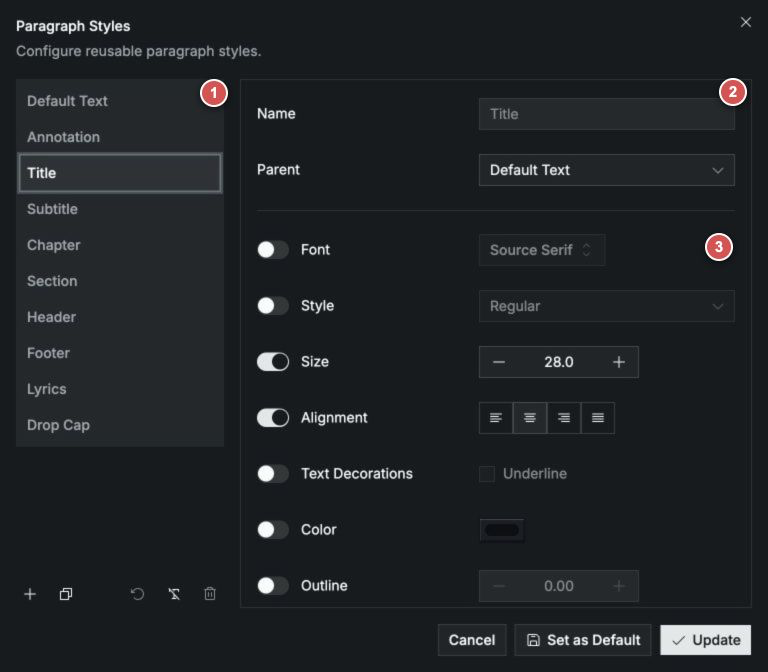
Style list and actions
Select a style from the list to view or edit it. The action toolbar at the bottom of the list contains:
- New Style creates a custom style.
- Duplicate Style makes a new style based on the selected style.
- Reset Style restores a built-in style to its original settings.
- Clear Formatting removes the selected style's own formatting so that it follows its parent.
- Delete Style deletes a custom style. Built-in styles cannot be deleted.
Name and Parent
Use Name to identify a custom style. Use Parent to choose the style on which it is based. The custom style follows its parent except for settings that you override in area 3. Built-in style names cannot be changed.
Formatting overrides
Use this section to control the style's appearance. Turn on the switch beside a setting when the current style should use its own value, then change the control on the right. Leave the switch off when the setting should follow the parent style.
Create a custom style
- Choose New Style .
- Enter a name, such as
Rubric. - Choose a Parent in area 2. The new style will follow that style except where you make changes.
- In area 3, turn on the switches for the settings you want to change.
- Choose the font, size, color, alignment, or other formatting you want.
- Choose Update.
Custom style names must be unique. If Update is unavailable, check that every custom style has a name and that no two styles have the same name.
Start from an existing style
Select a style that already looks similar, then choose Duplicate Style . Rename the copy and change only the settings that should be different.
For example, you could duplicate Default Text to create a Rubric style, then change only its color and font style.
Let styles share formatting
The Parent setting lets one style follow another. This is useful when several styles should use the same font but have different sizes or alignment.
Each formatting row has a switch:
- When the switch is off, the setting follows the parent style.
- When the switch is on, the current style uses its own value.
In the screenshot, Title follows Default Text for its font and font style, but uses its own size and alignment. Changing the Default Text font will therefore change Title as well. Changing the Default Text size will not.
To make a setting follow the parent again, turn its switch off.
Change a style's appearance
The formatting panel includes controls for:
- Font: family, style, and size
- Paragraph layout: alignment and line height
- Text appearance: decoration, color, and outline
- Case: small caps and all small caps
- Numbers: lining or oldstyle figures, tabular or proportional spacing, fractions, slashed zero, and ordinals
- Ligatures: common, discretionary, and historical ligatures, plus contextual alternates
- Alternates: historical forms and any stylistic sets, character variants, swashes, ornaments, or annotation forms supplied by the font
Available typographic features vary by font. Use the controls in a paragraph style for formatting that should be shared; the same controls in an element's Properties pane create a local override instead.
Understand synthesized font styles
Some fonts do not include separate bold or italic faces. Neanes can synthesize the missing formatting so that older scores and fonts with a limited set of styles remain usable.
In a Style dropdown, the text before parentheses is the real font face. Formatting in parentheses is synthesized:
| Style shown | Meaning |
|---|---|
Regular | A real regular face |
Bold | A real bold face |
Italic | A real italic face |
Bold Italic | A real bold italic face |
Regular (bold) | Bold synthesized from the regular face |
Regular (italic) | Italic synthesized from the regular face |
Regular (bold italic) | Bold and italic synthesized from regular |
Bold (italic) | A real bold face with synthesized italic |
Italic (bold) | A real italic face with synthesized bold |
When available, prefer a real face because it was designed by the font's creator. Synthesized styles remain available when a font does not provide the face you need.
Clear, reset, or delete a style
- Choose Clear Formatting when the style should keep its name and parent but follow the parent's formatting completely.
- Choose Reset Style when you want to restore a built-in style to its original settings.
- Choose Delete Style to remove a custom style. Text using that style will fall back to its parent or the normal style for that kind of text when you choose Update.
Apply changes and set defaults
Use the buttons at the bottom of the dialog according to what you want to change:
| If you want to... | Choose... |
|---|---|
| Change styles in the open score | Update |
| Use the displayed styles for new scores | Set as Default |
| Change both the open score and new-score defaults | Set as Default, then Update |
| Discard changes to the open score | Cancel |
Set as Default does not change the open score. It only affects scores you create afterward.
Fix text that does not update
Formatting applied directly to an item takes priority over its paragraph style. This is useful when one item needs to be different, but it can also prevent a style change from appearing.
If text does not change when you update its style:
- Select the text and confirm that it uses the style you edited.
- Check the contextual toolbar and Properties pane for formatting applied directly to the text.
- Remove that direct formatting if the text should follow the style.
- Open
Format > Paragraph Stylesand check whether the setting is controlled by the style or inherited from its parent.
Reuse styles in another score
Paragraph styles are saved with the score. When you copy styled content into another score, Neanes also copies any custom styles that the content needs.
To use the same styles as the starting point for future scores, choose Set as Default in the Paragraph Styles dialog.