Text, Images, Annotations, and Alternate Lines
Use text elements for headings and explanatory material, images for artwork or scanned material, and note attachments for annotations or alternate melodies. These elements are inserted from the Insert menu or the corresponding buttons in the main toolbar.
| Element | Best use | Formatting scope |
|---|---|---|
| Text Box | Short, simply formatted text | The whole text box |
| Rich Text Box | Several paragraphs, links, lists, rules, images, or inserted neumes | Individual paragraphs and text selections |
| Inline Text Box | Text that sits in the musical flow and aligns with the neumes or lyrics | The whole text box |
| Image | Artwork, a logo, or a scanned passage from your computer | Size, flow, and alignment |
| Annotation | Additional text attached to one note | Rich text and position |
| Alternate Line | An alternate musical reading attached to one note | Neumes and position |
The selection determines where Neanes inserts a new element. Select the score element that should follow the new text or image. For an annotation or alternate line, select the note to which it should be attached.
Add and format text
Choose the kind of text that matches the material:
- Choose
Insert > Text Boxfor a single block with one font and paragraph style. - Choose
Insert > Rich Text Boxwhen you need several paragraphs or formatting within a paragraph. - Choose
Insert > Inline Text Boxwhen the text should remain in the musical flow instead of occupying its own block.
After insertion, type in the new box. Select a text element to show its contextual formatting toolbar. The Properties pane contains its complete layout and formatting options.
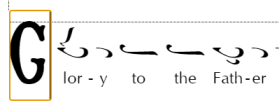
Use Insert > Drop Cap Before or Insert > Drop Cap After to add a drop cap, then type its letter. The shortcut is Ctrl/Cmd+D for before and Ctrl/Cmd+Shift+D for after.

For formatting that several text elements should share, see Paragraph Styles.
Arrange advanced text boxes
Select a text box and open View > Properties. Multipanel and Fill Width are under Positioning; a rich text box has a separate Scrollable section.
Create a three-panel text box
Enable Multipanel on a non-inline Text Box to divide it into left, center, and right panels. Click each panel to enter its text. This is useful for a single line whose outer labels and centered text must keep their positions, such as a heading or a custom header or footer.
Multipanel text boxes occupy their own block. Turn off Inline first if Multipanel is not available.
Fill the rest of a musical line
Enable Fill Width on an Inline Text Box to extend it from its insertion point to the next element or to the end of the line. Use this for text that should consume the remaining horizontal space without calculating an exact Width. Turn on Inline first to make Fill Width available.
For an inline Rich Text Box, leave Width at fill for the equivalent behavior. Enter a width when the box should use a fixed amount of space instead.
Keep a rich-text box within the page
For a Rich Text Box with more content than the remaining page height, enable Scrollable in Properties. The box stays within the page and gains a vertical scrollbar instead of continuing beyond the bottom margin. This is most useful for scores read on screen; review a PDF or printout carefully because a static page cannot reproduce scrolling.
Work with images
Insert and select an image
- Select the score element that should follow the image.
- Choose
Insert > Image, or choose Insert image in the main toolbar. - Select an image file from your computer.
Neanes inserts the image immediately before the selected element. It stores the image in the score, so the original file does not need to remain beside the score.
Click an image to select it. The resize handles appear on the selected image, and its settings appear in the Properties pane.
Neanes accepts BMP, JPEG, PNG, GIF, SVG, WebP, and ICO files. Animated images and other screen-only effects may not be suitable for printing or PDF export.
Resize an image
Drag a resize handle on the selected image, or enter an exact Width or Height under Size in Properties.
Maintain Aspect Ratio is enabled by default, so changing one dimension changes the other without stretching the image. Turn it off when the width and height must be adjusted independently. You can also right-click the image to change this setting.
Use Properties for repeatable sizing
If several images should have the same dimensions, enter their width or height in Properties instead of trying to match them by dragging.
Position an image
An image can occupy its own block or remain in the musical flow:
- Leave Inline off to give the image its own block. Under Positioning in Properties, choose left, center, or right alignment within the text area.
- Turn Inline on to keep the image in the same flow as the surrounding music and text. Its location then follows its position among the score elements, so block alignment is not available.
To move an image to another place in the score, cut it, select the destination, and paste it. The active entry mode affects pasting; Insert mode places the image after the destination without replacing the following element. See Cut, copy, and paste.
Replace or remove an image
There is no separate Replace Image command. To exchange the image while keeping control of its placement:
- Note the old image's Inline, size, and alignment settings.
- Select the old image and choose
Insert > Image. The new image is inserted immediately before it. - Apply the desired size and positioning to the new image.
- Select the old image and press Delete, or choose Delete in the main toolbar.
To remove an image without replacing it, select it and press Delete. If you remove or replace the wrong element, choose Edit > Undo.
Add annotations to notes
An annotation is movable rich text attached to a particular note. Use it for a rubric, explanation, performance direction, or other text that should stay associated with that note.
Create an annotation
- Select the note that should own the annotation. An annotation cannot be attached to a martyria, text box, or other non-note element.
- Choose
Insert > Annotation, or choose Annotation in the main toolbar. - Type the annotation. Click elsewhere when you finish.
The new annotation appears above the note and uses the built-in Annotation paragraph style. If you leave a new annotation empty, Neanes removes it when you move away.
Select, edit, and format an annotation
- Click an existing annotation once to select it. The note remains its attachment point, while the Properties pane and bottom toolbar show the annotation's settings.
- Double-click the annotation to edit its text. The rich-text toolbar can format selections, insert links or neumes, and apply paragraph styles.
- To change the default appearance of annotations throughout the score, edit the built-in Annotation style under
Format > Paragraph Styles.
When you finish editing, click elsewhere. Clearing all of an annotation's text removes the annotation.
Move or remove an annotation
When the annotation is not in text-editing mode, drag it to the desired place on the page. For a precise position, select it and change Left and Top under Positioning in Properties.
To remove an annotation, click it once to select it, then press Delete or choose Delete in the main toolbar. The note itself remains in the score.
Add alternate musical lines
An alternate line is a short sequence of neumes attached to a note. It is useful for an alternate reading or melodic variant that should appear near the principal line without becoming part of normal playback and lyric entry.
Create and enter an alternate line
- Select the note that should own the alternate line.
- Choose
Insert > Alternate Line, or choose Alternate Line in the main toolbar. - With the empty alternate line selected, enter quantitative neumes from the Neume Selector or the neume keyboard.
- Use the selected-neume toolbar to add or change supporting signs on the last neume in the alternate line.
New quantitative neumes are appended to the alternate line. The Auto, Insert, and Single entry modes do not change this behavior. If you click elsewhere before entering a neume, Neanes removes the empty alternate line.
Continue or edit an alternate line
Click an existing alternate line to select it. Enter another quantitative neume to append it. The bottom neume toolbar edits the last neume in the line.
Press Backspace to remove the last neume. You can then enter its replacement or continue removing neumes from the end. To rebuild material in the middle of an alternate line, remove neumes back to that point and enter the revised ending.
Move, style, or remove an alternate line
Drag the alternate line to place it on the page. Neanes keeps it within the page bounds and attached to its original note.
The color and size shared by alternate lines are set under Neumes in File > Page Setup. See Style neumes and alternate lines.
To remove the entire alternate line, click it to select it and press Delete, or choose Delete in the main toolbar. This does not remove the note to which it was attached.
Format rich text
Use the rich-text toolbar to change the selected text or the paragraph containing the cursor. Character formatting, such as bold or color applied to a selection, can coexist with the paragraph's style.
Set language and text direction
Select text in a rich text box or annotation, open View > Properties, and choose its Language under Style. The language choice also sets the appropriate left-to-right or right-to-left direction. With no text selected, the choice applies to text typed at the cursor.
Use System default to remove an explicit language and direction. This setting belongs to the score content; it is separate from the application language chosen in Edit > Preferences.
Use detailed typography controls
The Style section in Properties provides individual controls for typography supported by the selected font:
- Case offers small caps and all small caps.
- Numbers offers lining or oldstyle figures with tabular or proportional spacing.
- Fractions, Slashed Zero, and Ordinals enable specialized number forms.
- Ligatures controls common, discretionary, and historical ligatures, plus contextual alternates.
- Alternates can include historical forms, stylistic sets, character variants, swashes, ornaments, and annotation forms.
Available alternates vary by font. Select the text first for a local change, or put the setting in a paragraph style when it should be reused consistently.
Link to another place in the score
You can create a link that jumps to a score element in an exported PDF:
- Select the destination element.
- Choose
Edit > Copy Element Link. - Select the text that should become the link.
- Choose the link control in the rich-text toolbar and paste the copied value into
Link URL.
Add lists and horizontal lines
Use the bulleted-list or numbered-list control to create a list. Numbered lists can begin at a custom number, run in reverse, and use different numbering styles.
Use the horizontal-line control to add a divider between sections of a rich text box.