Lyrics
You can enter lyrics directly beneath the neumes or edit a whole passage in the Lyrics pane. Direct entry is convenient while writing a score. The Lyrics pane is better for replacing text, shifting syllables, or preparing a prosomoion.
Enter lyrics directly
Click beneath a neume and type. The following keys help you move between the neumes and their lyrics:
- Press Space or Tab to move to the next lyric box.
- Press Ctrl/Cmd+Right Arrow to move to the next lyric box.
- Press Ctrl/Cmd+Left Arrow to move to the previous lyric box.
- Press Ctrl/Cmd+Space to enter an actual space.
- Press Right Arrow at the end of a lyric to move to the next box, or Left Arrow at the beginning to move to the previous box.
- Press Ctrl/Cmd+Down Arrow to move from a neume to its lyrics.
- Press Ctrl/Cmd+Up Arrow to return to the neume.
Make a melisma
End a lyric with an underscore or hyphen (_ or -) to start a melisma. Enter a single underscore or hyphen beneath each following neume that continues the syllable. Neanes draws the melisma for you.
To type _ or - without advancing to the next lyric box, hold Ctrl on Windows or Linux, or Option on macOS.
Greek melismata
When entering Greek directly beneath the neumes, use an underscore for a syllable that ends in a vowel. Neanes continues its final vowel or vowels, and the repeated text appears lighter than the original lyric.
For example, enter και_ _ _:

For a syllable that ends in a consonant, use a hyphen to continue the vowel inside the syllable. For example, enter τω- - ων:

These forms distinguish the single syllable των from the two words τω ων, even though their melismata can look alike in the score. In the Lyrics pane, the consonant-ending example is written των___; the two-word form is written τω__ ων. Neanes converts the compact pane text to the appropriate fragments beneath the neumes.
To center a complete syllable beneath an apostrophos followed by a hyporroe, enter it directly on the apostrophos with a continuation marker, then enter the continuation marker alone on the hyporroe. For example, μην_ followed by _ displays μην once, centered beneath the pair. An explicit line or page break between the two neumes prevents this grouping. Separately entered fragments such as μη- and ην remain separate.
To use the non-Greek behavior instead, enable Disable Greek Melismata in File > Page Setup.
Edit lyrics in the Lyrics pane
Choose View > Lyrics or press Ctrl/Cmd+L. The pane shows the score's lyrics as editable text. Changes in the pane are assigned back to the neumes, and changes made beneath individual neumes are reflected in the pane.
This is a quick way to replace a passage or shift lyrics left or right without opening every lyric box.
Drop caps appear as part of the pane's text and receive the next non-space character when you replace the text. Blank lines mark passages separated by mode changes or by martyriæ that end a line or are aligned to the right. They show the score's structure but do not consume lyric positions.

When lyrics are not locked, they belong to their neumes. If you delete the neume carrying two, the pane changes from:
one two three fourto:
one three fourLeave a neume blank
Use a single underscore separated by spaces as a placeholder when a neume should receive no lyric:
one _ two
Lock lyrics while editing the melody
Enable Lock Lyrics in the Lyrics pane when you want the text to remain fixed while adding or removing neumes. While lyrics are locked, edit the text in the pane rather than beneath individual neumes.
Suppose four neumes have these lyrics:
one two three four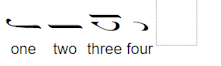
If you delete the second neume, the text remains unchanged. Neanes assigns the four lyrics to the three remaining neumes as far as it can:
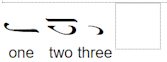
If you add a fourth neume, it receives four:
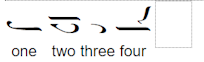
Choose which neumes receive lyrics
Select a neume and open View > Properties. The Accepts Lyrics setting controls how the Lyrics pane treats that neume.
| Value | Meaning |
|---|---|
| Default | Uses the neume's normal behavior. For example, rests do not receive lyrics by default. |
| Yes | Assigns the next ordinary lyric to the neume. |
| No | Skips the neume when assigning text from the Lyrics pane. |
| Melisma Only | Assigns a melisma continuation, represented by a hyphen or underscore, without consuming the next ordinary lyric. |
Melisma Only is especially useful in templates. It lets the Lyrics pane skip the continuation neumes automatically, so replacement text does not need to contain a run of underscores or hyphens.
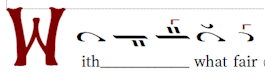
With every neume set to Default, you must write the continuations explicitly:
With___ what fairIf the second and third neumes are set to Melisma Only, you can write:
With what fairNeanes supplies the continuations on those two neumes.
Choose Save Current Melismas in the Lyrics pane to set Accepts Lyrics throughout the score from the lyrics that are already present. Melisma continuation neumes become Melisma Only, blank non-melismatic neumes become No, and the remaining neumes return to Default.
Format lyrics
Select a lyric beneath a neume to use the text controls in the bottom toolbar. You can apply a paragraph style, choose a font and size, add bold, italic, or underline formatting, and insert the supplied special characters. The Properties pane contains additional settings for the selected lyric.
For consistent formatting throughout the score, choose Format > Paragraph Styles and modify the built-in Lyrics style instead of formatting each neume separately. See Apply a style.
Create a prosomoion from an automelon
A prosomoion uses the melodic pattern of an automelon with different words. Neanes can preserve the automelon's syllable and melisma pattern while you replace its text.
Prepare the template
- Create the automelon with its melody and original lyrics.
- Open the Lyrics pane and choose
Save Current Melismas. This records which neumes carry syllables and which carry only melisma continuations. - Enable
Lock Lyrics. - Save the score as your template.
Keep the original template unchanged. Make a copy whenever you want to create a new prosomoion.
Prepare the new text
For languages that use written syllable breaks, hyphenate the new text before pasting it. For example:
With what fair crowns of praise shall we crown the di-vine and all-laud-a-ble hier-arch?Paste the text into the Lyrics pane. Neanes assigns each syllable to the neumes that accept ordinary lyrics and fills the Melisma Only positions automatically.
The new text may not match the automelon's pattern perfectly. After pasting, check the score. Add or remove syllable breaks and blank placeholders in the pane, or change individual Accepts Lyrics settings where necessary.
You can compare the result with the project's example: editable BYZX and PDF.
Use Greek text
In the Lyrics pane, Greek text uses spaces rather than written hyphens between syllables. Separate the syllables with single spaces and use underscores for melismata. This differs from direct entry beneath the neumes, where a hyphen marks a consonant-ending melisma. In the pane, place the underscore at the end of the complete syllable instead.
For example, των___ spreads the single syllable των across three neumes: